

IT Tips & Tricks: Adding an Email Account to Your Mobile Phone January 18, 2024 – Posted in: IT Support, IT Tips & Tricks, Productivity – Tags: it support, IT Tips, Mobile Support, Productivity
How you go about adding your work email to your phone will depend on what type of phone you have and which app you are using. Generally if you’re emails are with Microsoft 365 it will work best using the Outlook app that can be downloaded from the iPhone Store/Google Play Store.
Adding a Microsoft 365 Email Account to the Outlook App
To add your first account to Outlook:
- Open Outlook.
- Fill in your username and password.
It’s that simple.
If you already have one account in your Outlook app and want to add a second then you need to go to Settings then Accounts, then click Add Account and select Outlook.com for the type and put in your username and password.
Adding a Microsoft Exchange Email Account on Your Mobile
If you are using an on-premises Exchange email account then you are better off using the built in app for your iPhone or Android phone.
For an iPhone
You will need four pieces of information aside from your email address, you many need to ask your IT provider for the details:
- Your password.
- Your server/hostname – often mail.yourdomain.com.
- Your domain – not your website domain, the bit of your username before the \ when you log into your work computer: DOMAIN\username.
- Your username – this will either be your email address or the username you use for your work computer.
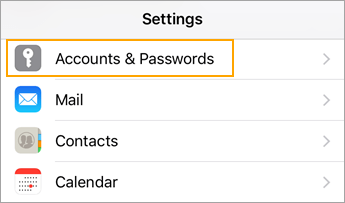
- Go to Settings > Accounts & Passwords > Add Account:
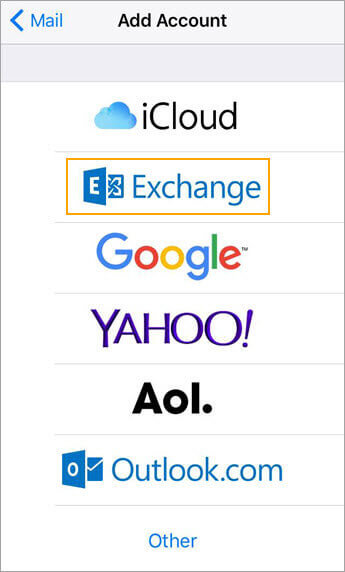
- Select the Exchange option:
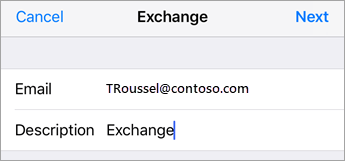
- Enter your details:
- Select Configure Manually:
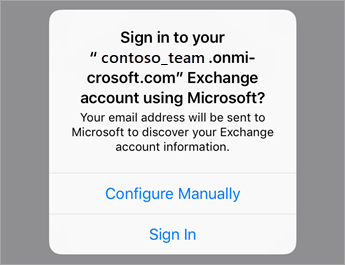
- Add your server, domain, username and password.
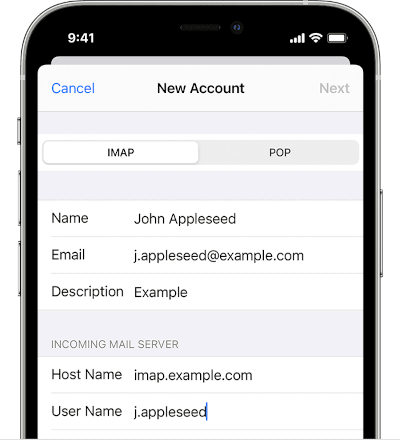
- Select sign in.
- Accept any required permissions.
- Select which services to sync, then save:
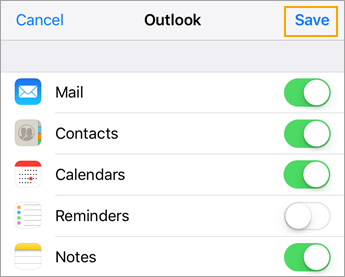
- Open your mail app.
For an Android Phone
You will need four pieces of information aside from your email address, you many need to ask your IT provider for the details:
- Your password.
- Your server/hostname – often mail.yourdomain.com.
- Your port – often 443.
- Your encryption type.
- Open the Gmail app, select the menu in the top left corner and select Settings > Add account > Exchange and Microsoft 365.
- Select the Exchange option:
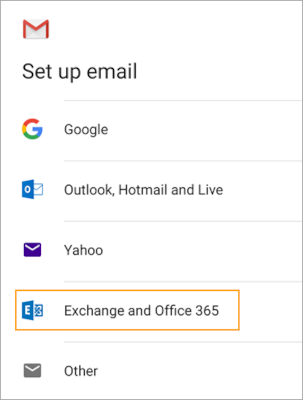
- Enter your details:
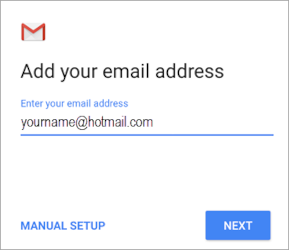
- It should now ask you to configure manually – add your server, domain, username and password.
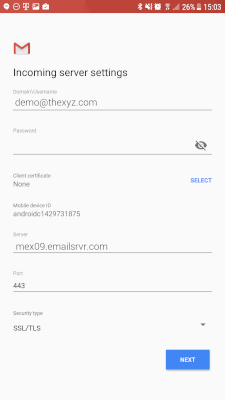
- Select sign in.
- Accept any required permissions.
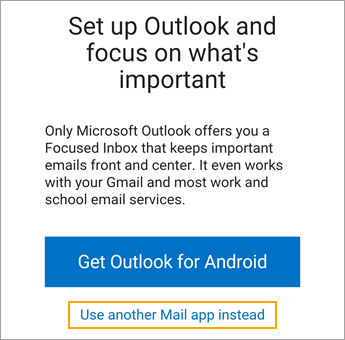
- Skip downloading Outlook:
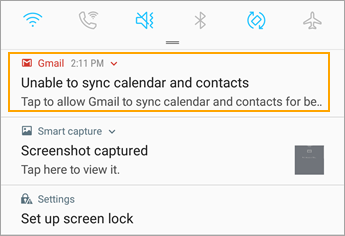
- Pull down your notification bar from the top of the screen and check if it says unable to sync calendar and contacts – if so then tap the warning and then tap allow:
- Open your Gmail app.
And that is how you set up your emails on your phone. If you’d like support with your emails or any other part of your IT – or if you’re looking to migrate your emails to the cloud – please give us a call on 01245 265100.