

IT Tips & Tricks: Using Authenticator Apps on your Mobile Phone February 15, 2024 – Posted in: Cyber Security, IT Support, IT Tips & Tricks – Tags: it support, IT Tips, IT Tricks, Tricks
Multi-factor authentication (MFA) is more and more common, Microsoft 365 now uses it by default and most solutions that access privileged information like accounting platforms or marketing software require a second form of identification.
Our article on cybersecurity and stopping malicious actors covers what MFA is and why it is important. This article is about how to set it up.
Various options are available – text messages to your phone, emails with a code, push notifications to your phone, an external USB key that you plug into your computer, or an authentication app code. Text messages and emails are the least secure option – easiest to fake or crack. The USB key is the most secure but it requires each staff member to buy or own a specialist piece of hardware which can be costly for a company. The balanced option is using an authenticator app on your phone.
An authenticator app is NOT a way for someone to track you. It is NOT an avenue where your company, or Microsoft can access or affect the data on your phone.
An authenticator app IS a self-contained app that generates a new code every 30 seconds. It means that when you log into your account and provide both the code and the password the website or app knows it is you, not someone who stole your credentials. Even if you allow push notifications where the authenticator app can appear over everything else on your phone saying is this you? click here to approve, that is all the app can do. It cannot access your data, camera (unless you’re scanning a QR code at the time), mic or contacts.
How to Set Up Your Authenticator App
- Start logging into the account you want to set up for on your PC and go through until it asks you to set up MFA.
- Go to the iPhone/Google app store.
- Search for Microsoft Authenticator – other apps are available but watch out for paid options.
- Download the app.
- Open the app and click Add an Account.
- Select Work or School Account for your work email, Personal Account for a personal outlook or live.com email account, select other for any non-Microsoft account.
- Select Scan QR Code, click through on your account login ’til you see a QR code, scan the QR code.
- The app should now show the account with a number after it. Enter the number into your login.
- It might pop up and ask you to enter a number from your computer screen into the app. Enter the number and hit ok.
- You’ve added an authenticator app and added your first account.
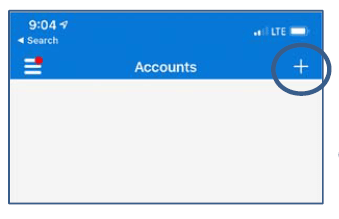

If you want to add other accounts you don’t need to download another app. Just click the Add an Account button again and run through the other steps.
If you have any concerns about cybersecurity, or would like to discuss any other IT Support needs you might have please give us a call on 01245 265100.